User roles
| Role | Permissions |
|---|---|
| Dealer admin | Can add users, reset verified scans, perform receiving functions, and search and review data. |
| Dealer user role | Can perform receiving functions and search and review data. |
| Read only role | Can search and review data. |
Open Users
Click Users in the ScanApp menu. The screen lists each user’s name, email, assigned roles, and Edit action.
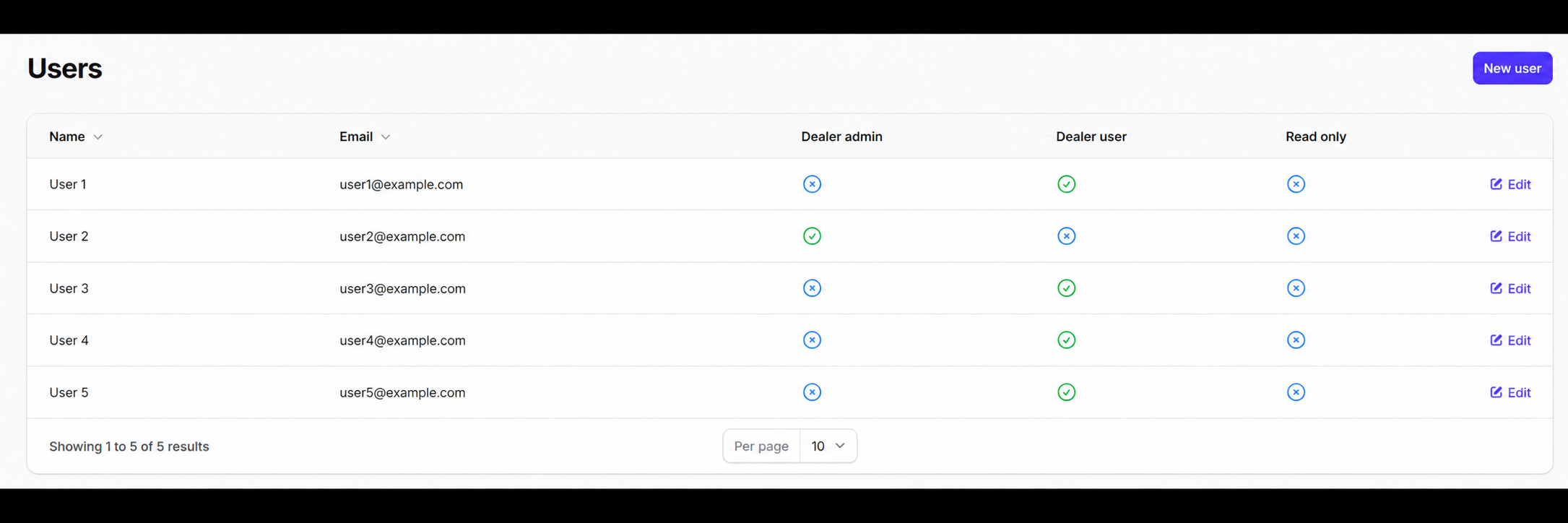
Users screen with anonymized names and emails. Enlarge image Add a new user
- Click New user.
- Enter the user’s Name and Email, and select the appropriate role.
- Click Create.
The new user will receive an email to set their password.
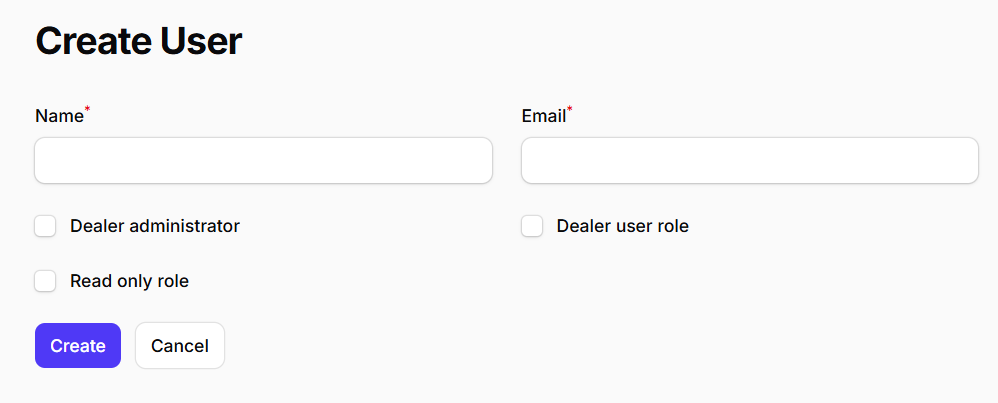
Create User form with name, email, roles, Create, and Cancel. Enlarge image Change a user’s role
- Find the user on the Users screen and click Edit.
- Change the selected role.
- Click Save changes.
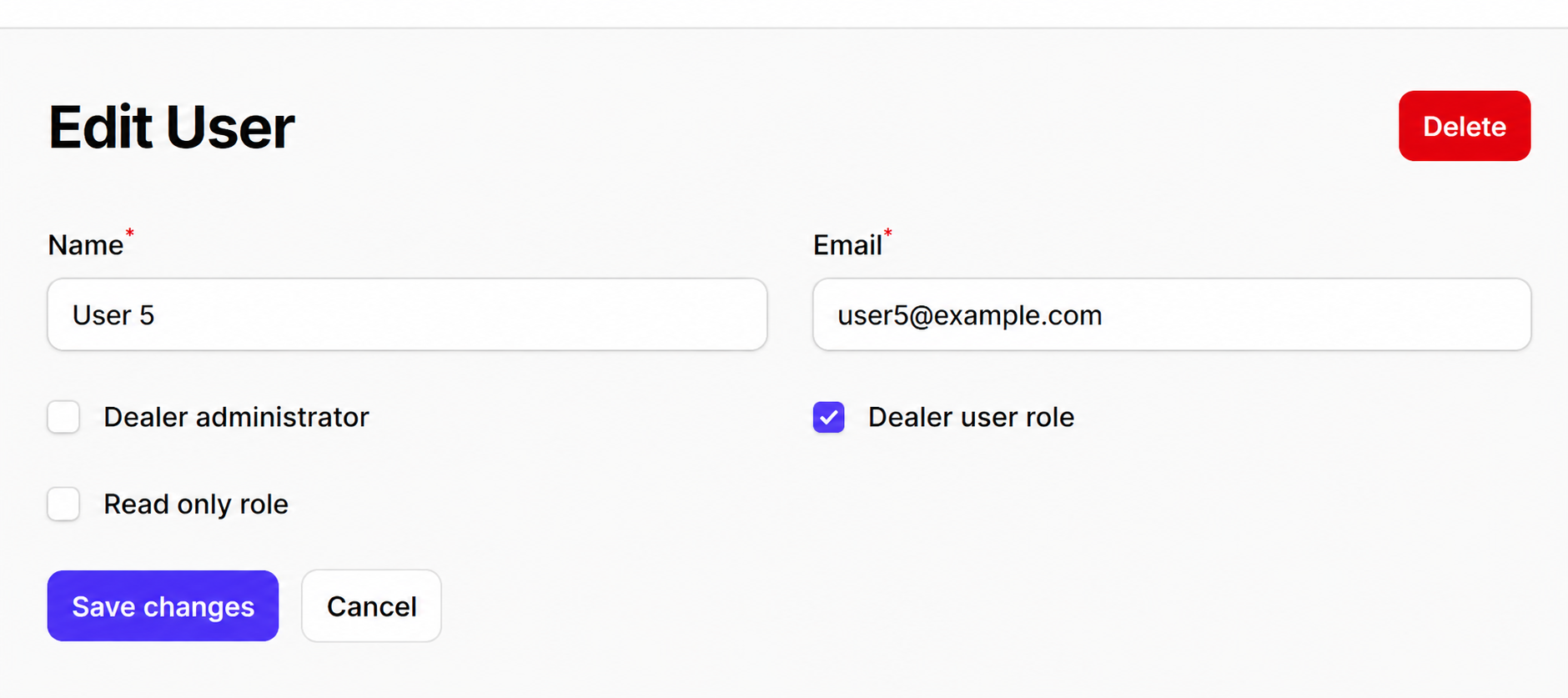
Edit User screen with anonymized user details, roles, Save changes, and Delete. Enlarge image Delete a user
Find the user on the Users screen, click Edit, then click Delete on the Edit User screen shown above.