Open the LPO screen
Select LPO from the left-hand menu. Review each line’s part number, part description, shipment number, work order, VINL6, receipt date, received quantity, issued quantity, remaining quantity, and status.
VINL6 identifies the last six digits of the vehicle’s VIN.
Part #, Shipment #, and VINL6 link directly to Parts Workbench Plus for further parts inventory analysis. Click the relevant number to dig deeper without copying and pasting it or writing it down.
You must be signed in to Parts Workbench Plus to use these links. If you are not signed in, clicking a link prompts you to log in.
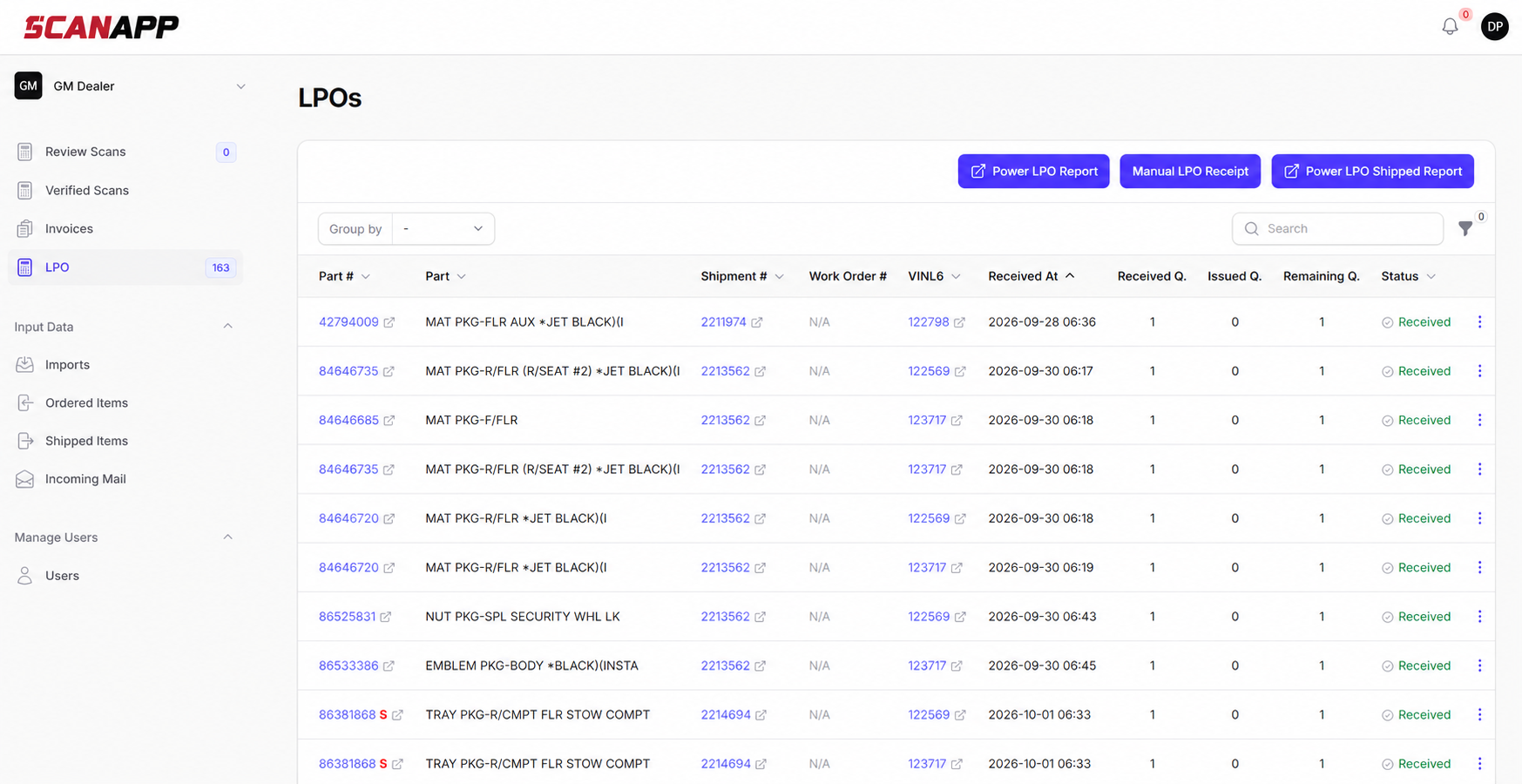
LPO Management screen. Open full-size image Find the LPO
Use Search and Filter to find the records you need. The screen can be grouped by LPO Status or VINL6.
To switch between received and issued LPOs, open Filter using the funnel icon. In the Status dropdown, choose Received, Issued, or All, then click Apply filters. Use Received from and Received to to set the receipt date range. Select Reset to reset the filters.
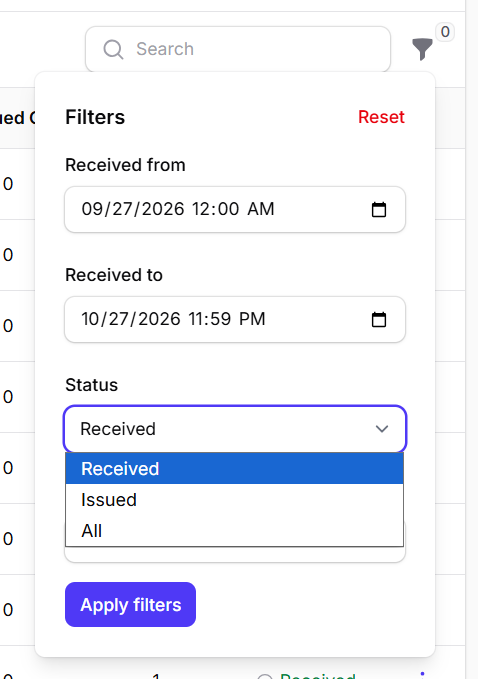
Choose the LPO status and apply the filters. Open full-size image Work with LPO
Click the three-dot menu at the right of any LPO line to view its details, issue parts, update VINL6, edit the quantity, or add a note. Each action is explained below.
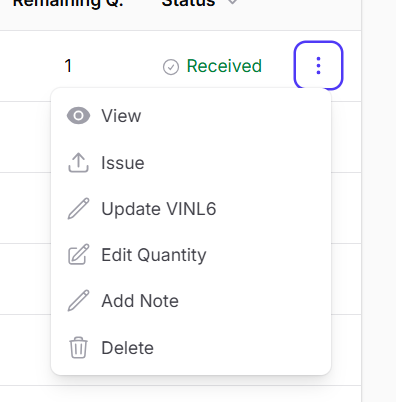
Open the three-dot menu for the LPO line you want to work with. Open full-size image View the LPO receipt and quantities
Select View. The View LPO window shows the scan code, part number and description, shipment number, VINL6, receipt date and time, work order, last issued date, and notes.
The LPO Quantity section shows Received Quantity, Issued Quantity, Remaining Quantity, and Status. Close the window using the X when finished.
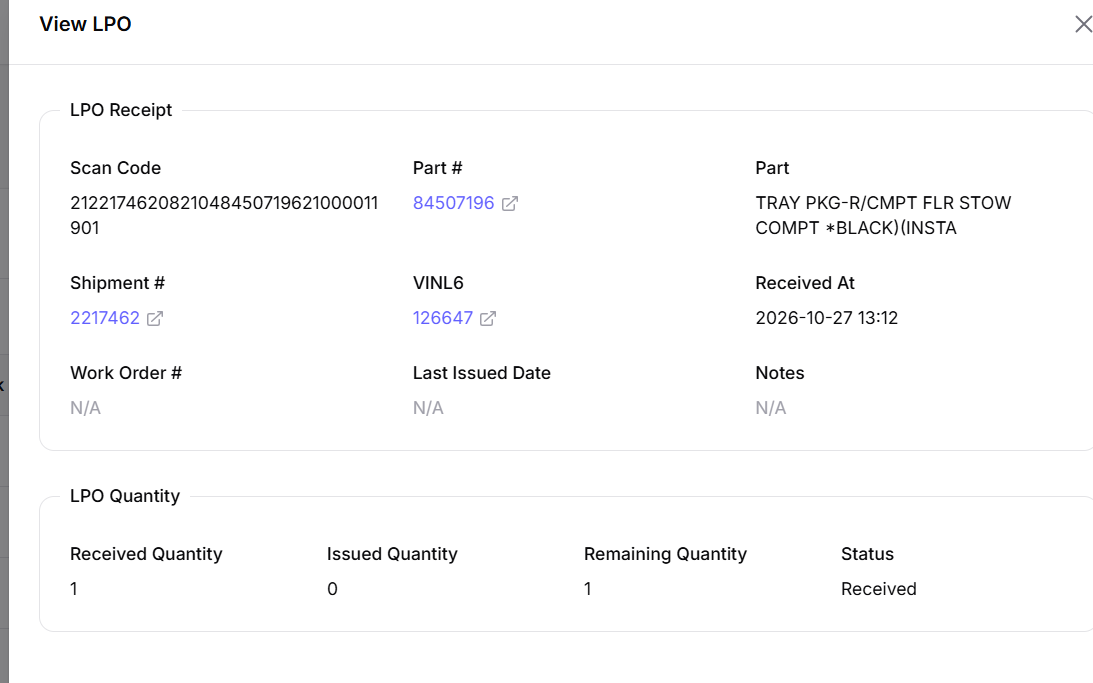
View LPO brings receipt information and quantity details together. Open full-size image Issue the LPO
Open the line’s three-dot menu and select Issue. Check the Remaining quantity before issue, then enter the required Quantity. Enter a Work Order # if needed; this field is optional.
Click Confirm to record the issue, or Cancel to leave without confirming. Review the line’s issued quantity, remaining quantity, and status afterward.
The status remains Received while the remaining quantity is greater than zero. When the remaining quantity reaches zero, the status changes to Issued.
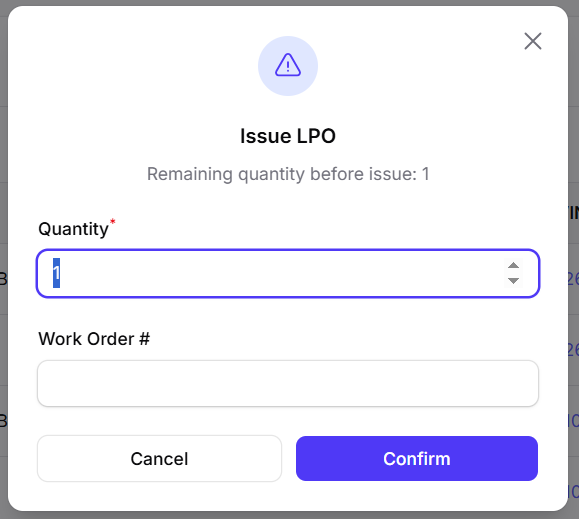
Enter the quantity to issue and an optional work order number, then confirm. Open full-size image Update LPO VINL6
To correct the vehicle identifier, open the line’s three-dot menu and select Update VINL6. Enter the VINL6 value, then click Update VINL6. Use Cancel to leave without updating.
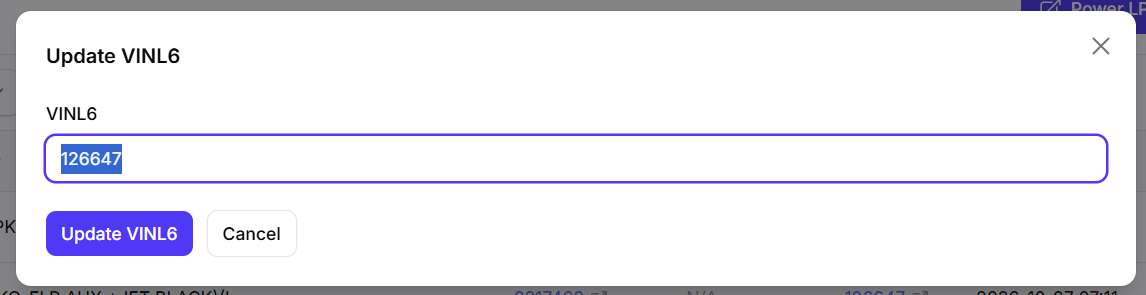
Update the last six VIN digits for the LPO line. Open full-size image Edit the LPO quantity
Open the line’s three-dot menu and select Edit Quantity. Enter the required Quantity, then click Submit. Use Cancel to leave without submitting.
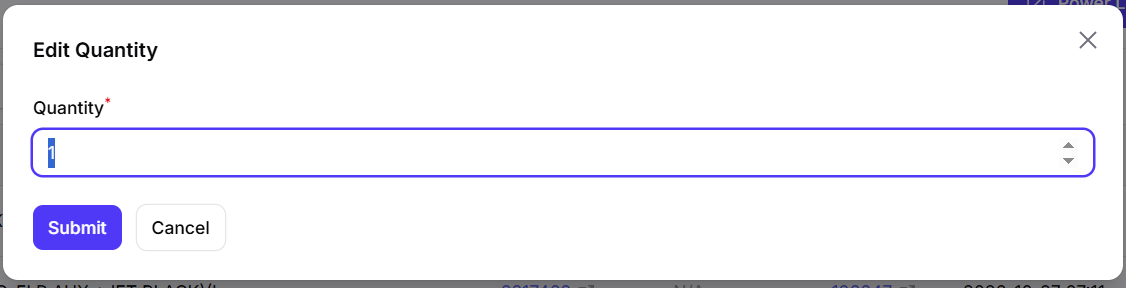
Use Edit Quantity to correct the quantity on an LPO line. Open full-size image Add a note to the LPO
Open the line’s three-dot menu and select Add Note. Enter your text in the Note field, then click Add Note. Notes can be reviewed in View LPO and in the Power LPO Report.
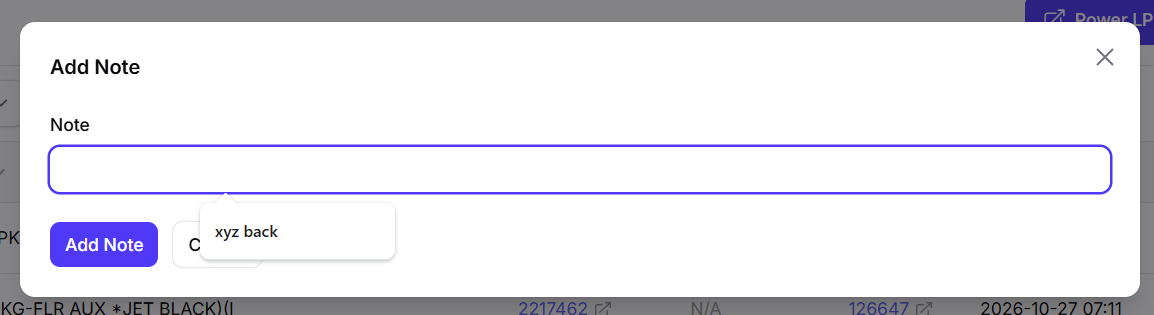
Enter the note and select Add Note to save it. Open full-size image Manual LPO Receipt
Use Manual LPO Receipt for LPOs that do not have a scannable barcode.

- On the LPO Management screen, click Manual LPO Receipt.
- Leave PDC set to DS.
- Enter the GM Shipment Number, VINL6, Part Number, and Quantity.
- Click Submit.
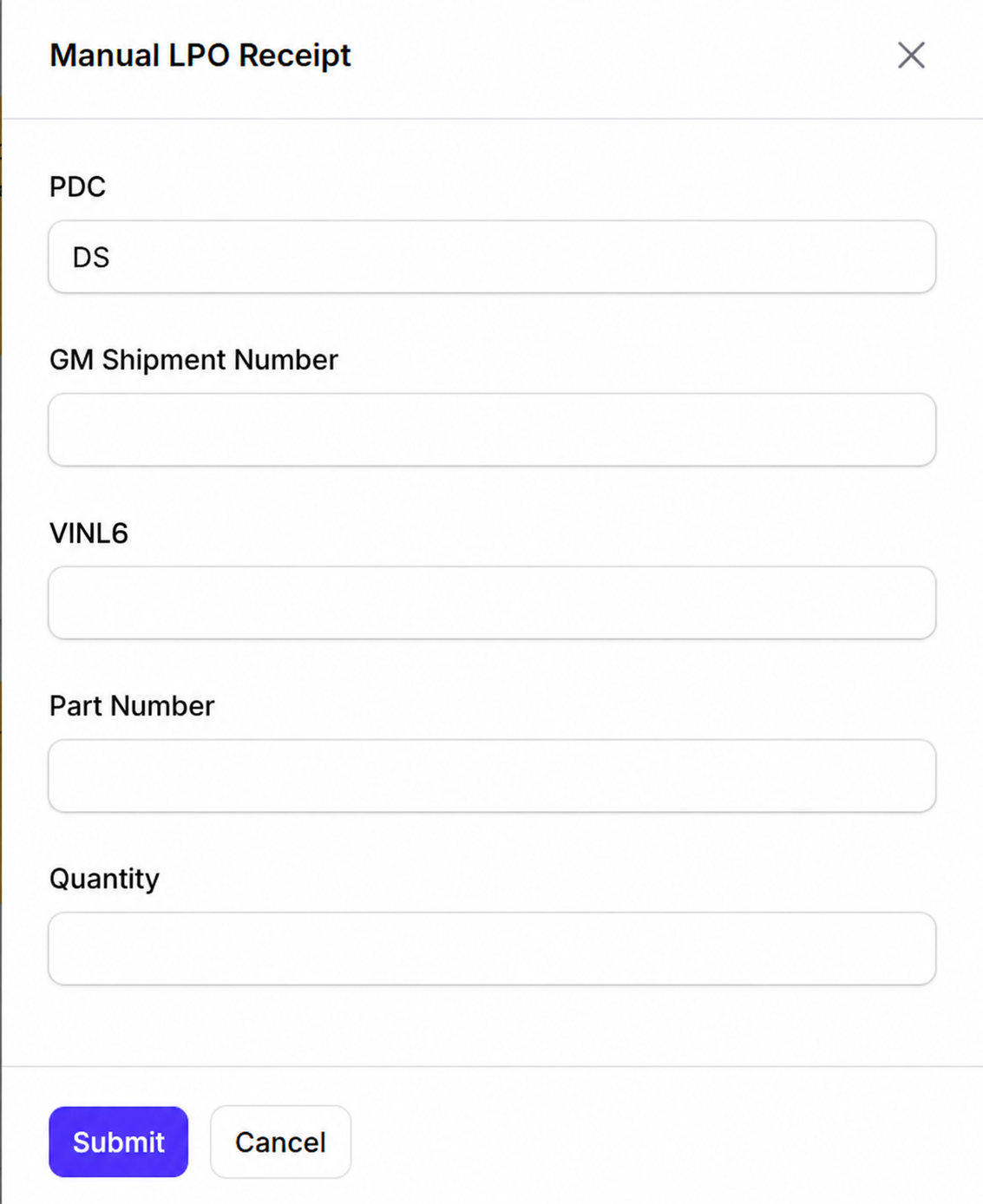
Manual LPO Receipt. Open full-size image Reports
Power LPO Shipped Report

The Power LPO Shipped Report exports shipped but not received LPOs to Excel. Use the report to review LPO shipments that are in transit to the dealership and not matched to a receipt scan.
The report includes shipping and order references, part and quantity information, Date Shipped, DSS (Days Since Shipped), and Bin Location. The DMS Order column contains the LPO’s VINL6. Review the report’s date heading and shipment dates when checking its coverage.
To run the report, select Power LPO Shipped Report from the ScanApp LPO Management screen.
Power LPO Report

The Power LPO Report exports all data from the current set filters for the records you want to review to Excel. The report contains Part number, Part name, Shipment Number, VINL6, Quantity Values, Status (Received or Issued), Work Order and Note.
To run the report, select Power LPO Report from the ScanApp LPO Management screen.
SCANAPP HOW TO
LPO Management
Review LPO receipts, issue parts, maintain details, and export reports.