Scan barcodes
Use the Power Scan Gun to scan each barcode on every package in the shipment. It recognizes Canadian and American General Motors barcode labels. Other barcodes will not be scanned and will produce an audible error sound.
Use the correct GM barcodes
- Canadian barcodes: Use the middle barcode on the General Motors shipping label.
Canadian label
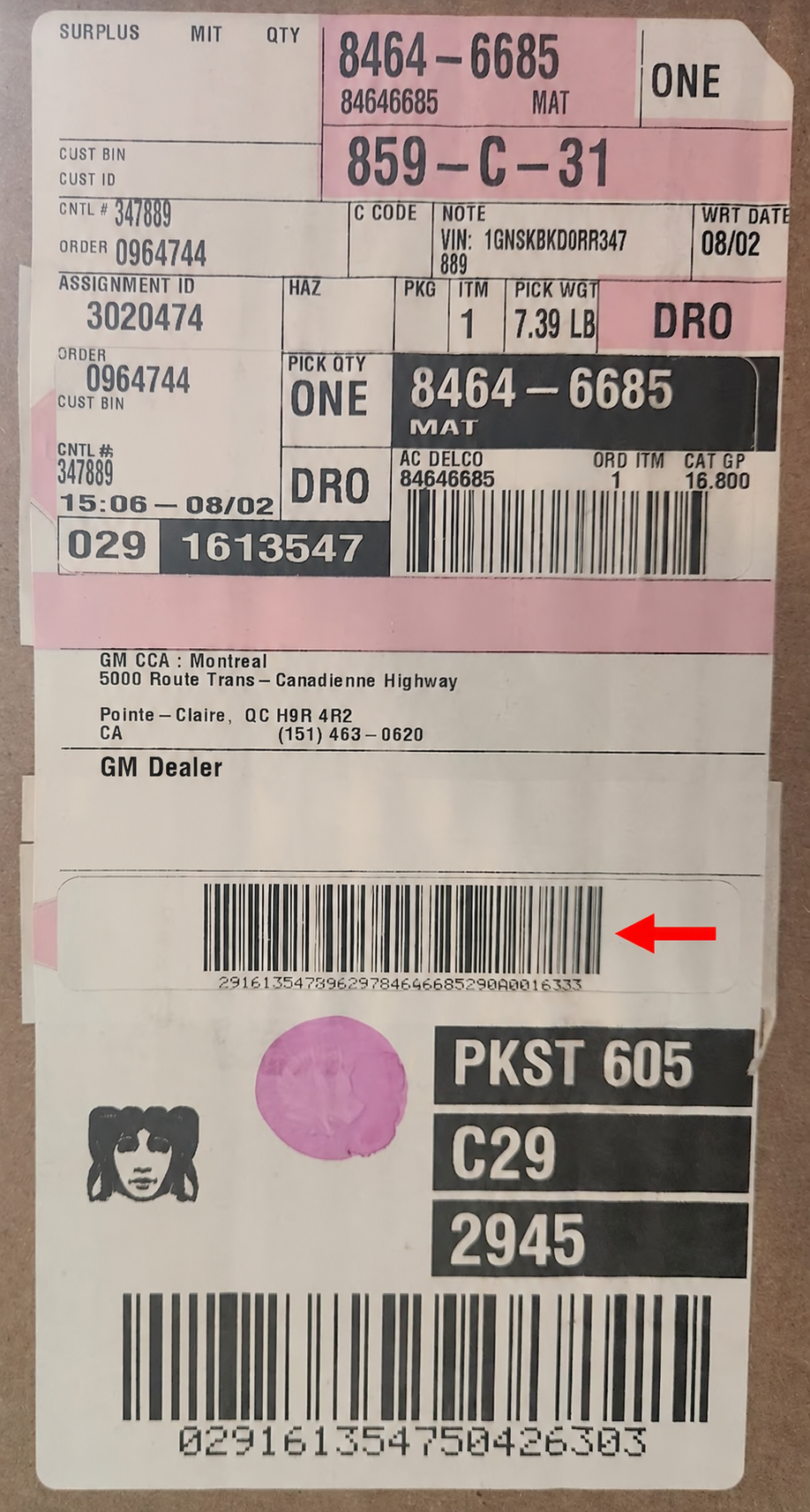
Canadian label. Open full-size image American barcodes: Use the middle and top barcodes on the General Motors shipping label. The codes can be scanned in either order.
US label
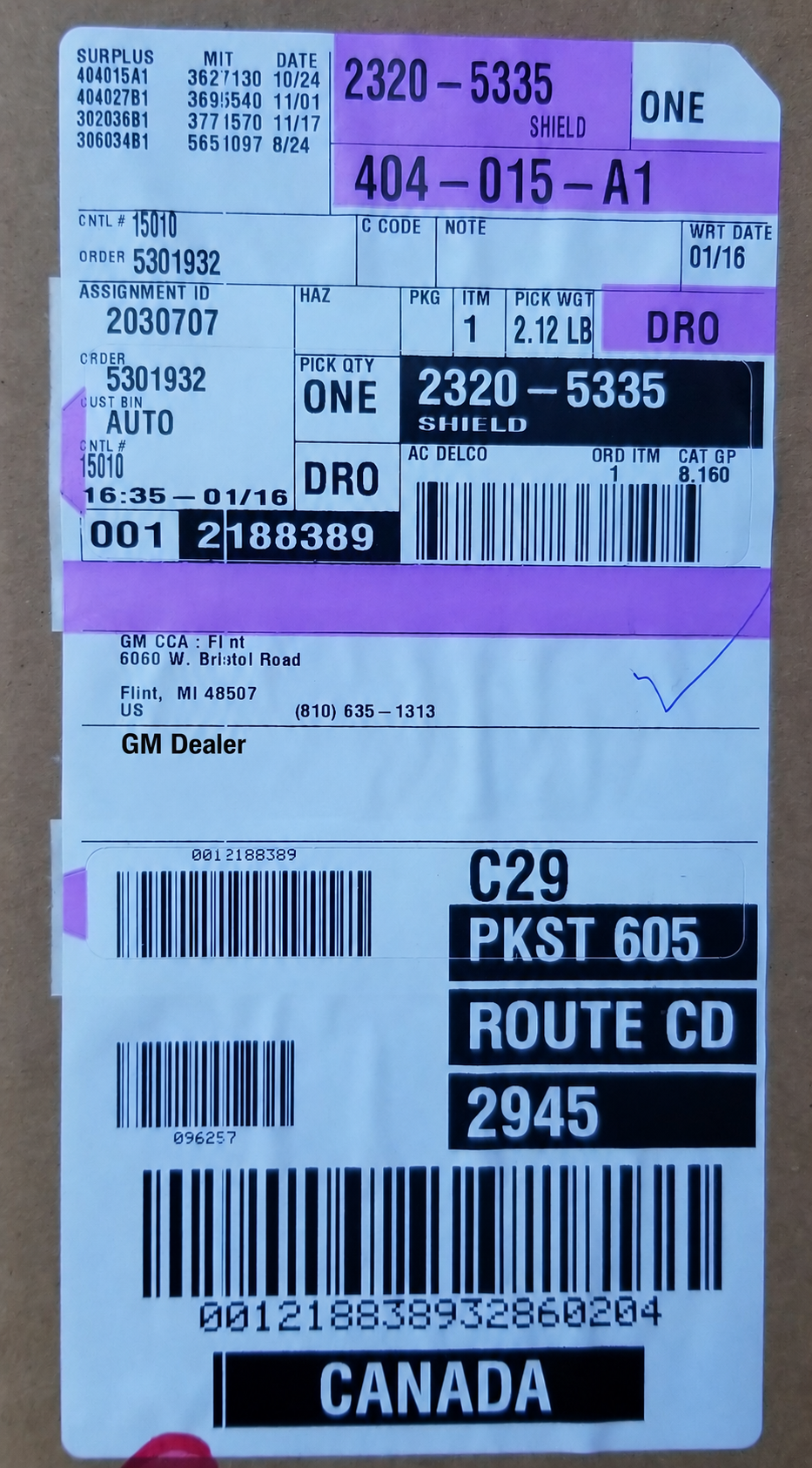
US label. Open full-size image Manual Receipt
Use Manual Receipt for direct shipped items and when there is no label to scan. This is different from Manual LPO Receipt, which is covered in the LPO Management guide.
- On the Review Scans screen, click Manual Receipt.
- The form contains PDC, GM Shipment Number, DMS Order Number, Part Number, and Quantity. PDC is shown as DS in this example.
- Enter the receipt details and click Submit, or click Cancel to leave the form.
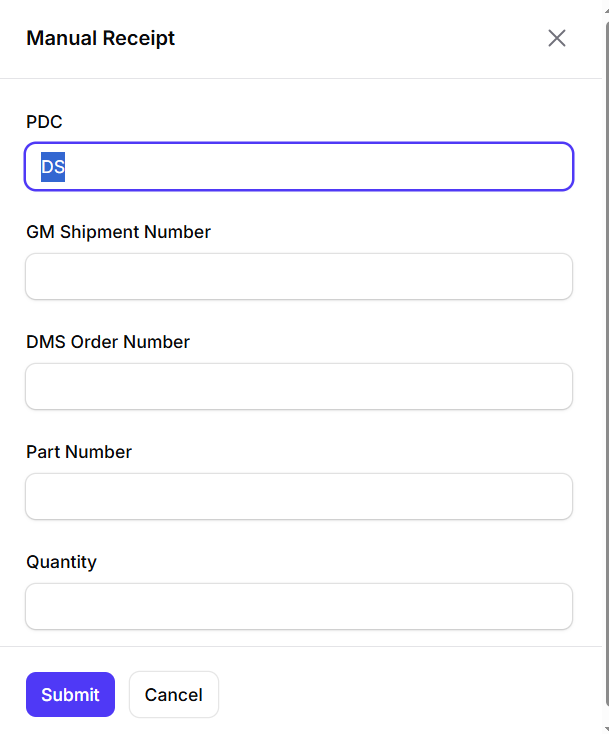
Manual Receipt form with DMS Order Number. Enlarge image Enter the quantity received
Use the quantity actually received, rather than the quantity listed on the shipping label.
Correct scans
If a quantity is incorrect, click the scan on the Power Scan Gun and change the quantity. The last few scans can also be deleted directly on the Power Scan Gun if needed.
Receive split shipments
For split shipments, scan barcodes in the order shown on the labels, for example 1 of 3, 2 of 3, and so on.
Review scans
The Review Scans screen gives the receiver a second chance to check the day’s receipts before finalizing them. Review the quantities and status of each receipt, and edit any receipt quantities as needed before verification.
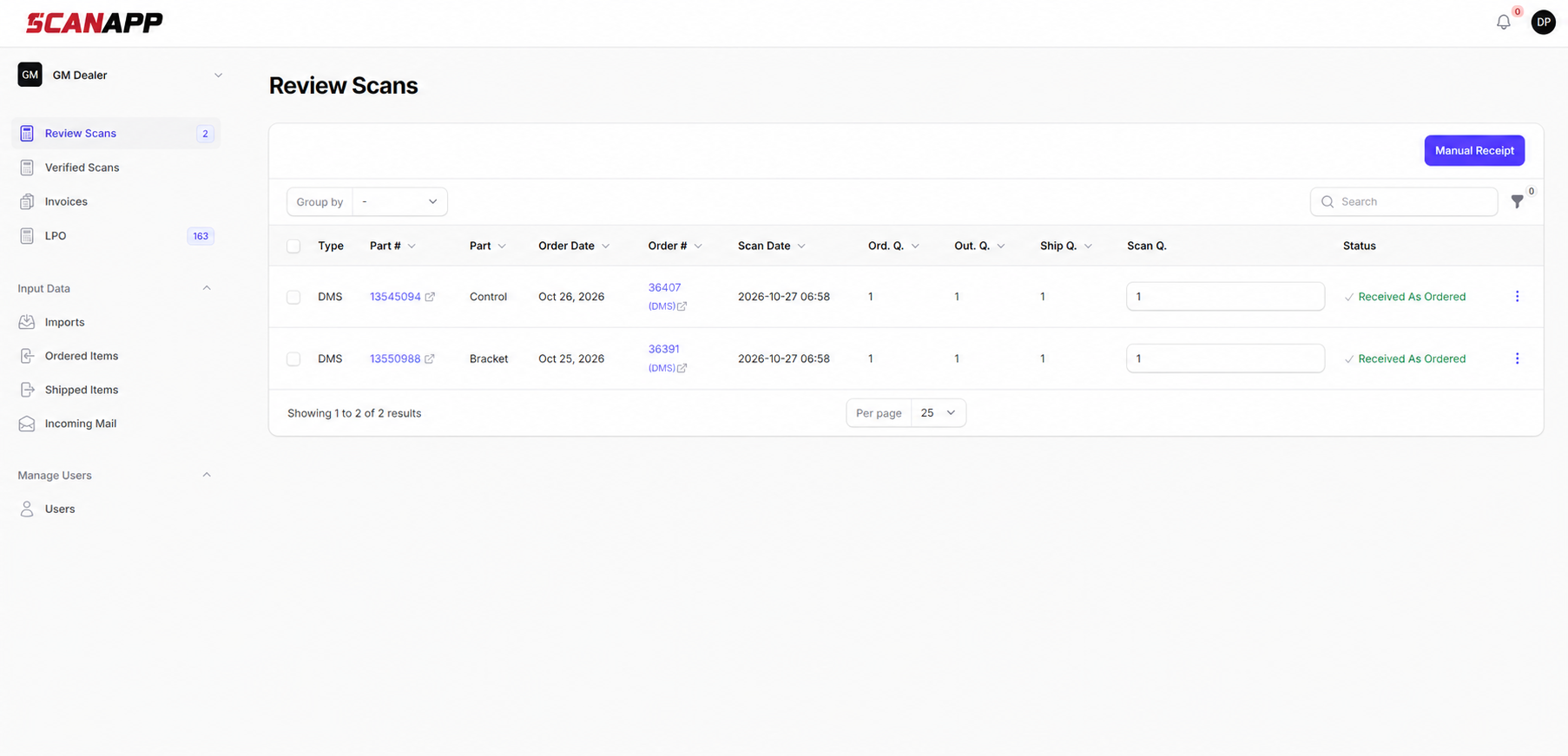
Review Scans screen for GM Dealer. Enlarge image Manual PO Match
Use Manual PO Match to match a receipt to a purchase order (PO) when GM has not yet sent the shipping data. GM’s shipping data can sometimes arrive late, so you may need to select the PO manually for a part you have already received.
Under Review Scans, open the action menu next to the part you are working with and select Manually Assign.
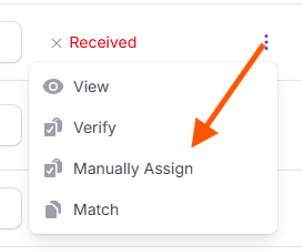
Open the receipt action menu and select Manually Assign. Enlarge image Select the order that matches your part and click Manually Assign.
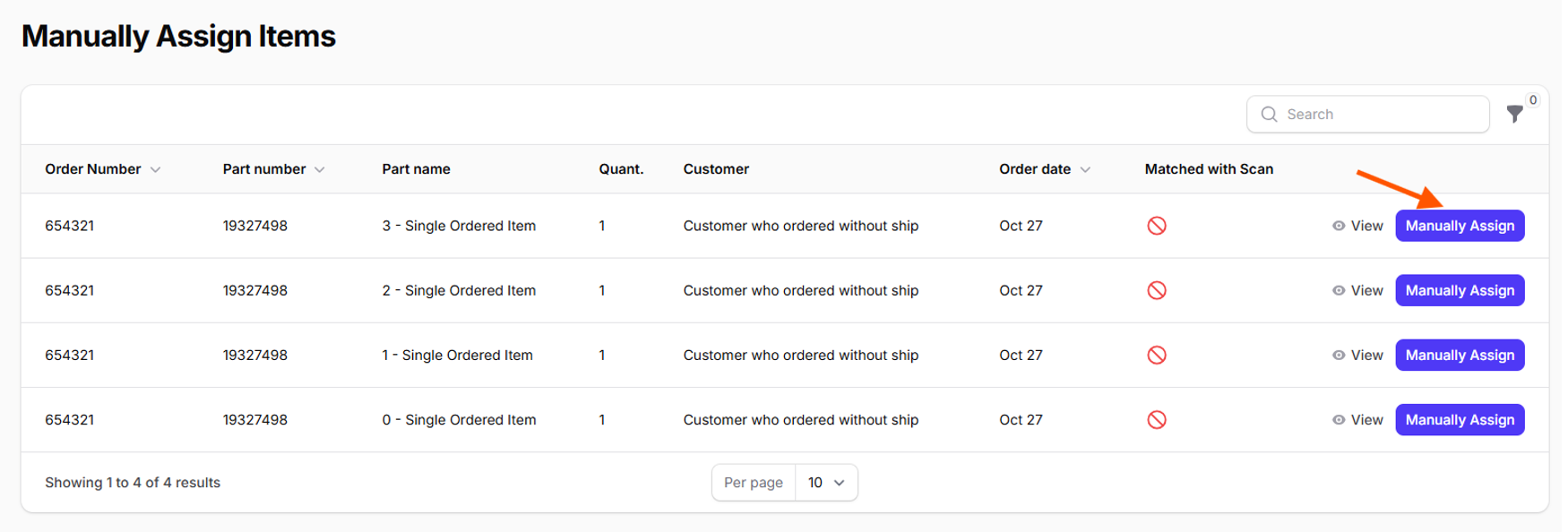
Select the matching order on the Manually Assign Items screen. Enlarge image When the confirmation window appears, click Confirm.
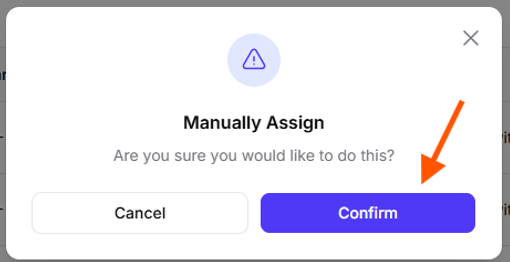
Confirm the manual assignment. Enlarge image Look for the Manually assigned notification to confirm that your part has been assigned.

Manually assigned confirmation notification. Enlarge image
Verify scans
Select the checkbox beside each scan you want to verify. Use the checkbox in the column heading to select the visible rows.
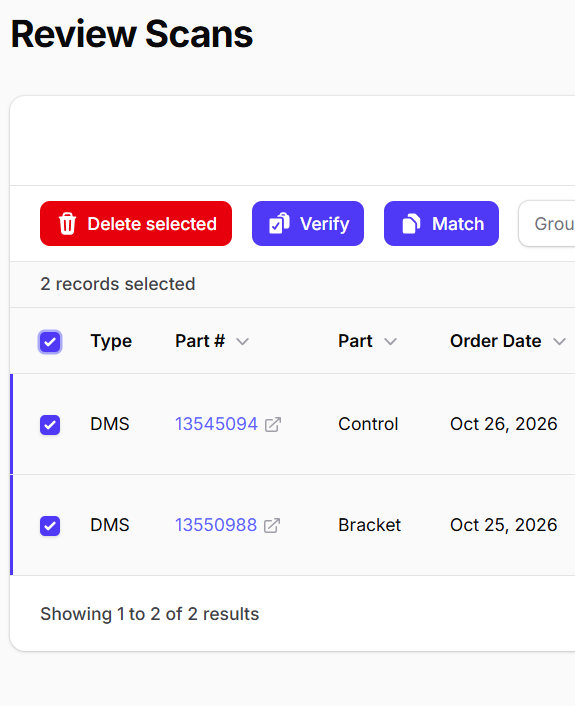
Selected Review Scans rows showing the Verify action. Enlarge image Click Verify, then click Confirm in the confirmation window. The verified records move to Verified Scans. Click Cancel to leave without confirming.
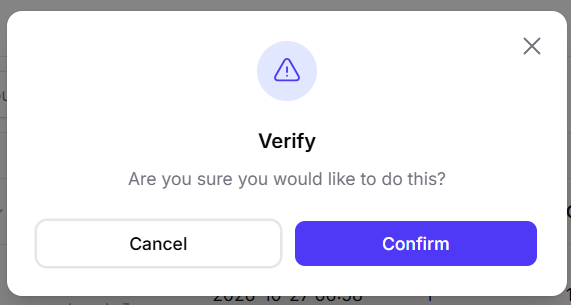
Verify confirmation window with Cancel and Confirm. Enlarge image Find verified receipts
Open Verified Scans to review receipt history. Set the date parameters and enter search text to find the records you need. For example, enter a part number to find its receipts within the selected period.
The screen shows order and scan dates, ordered, outstanding, shipped and scanned quantities, status, and the PO column. The example is grouped by Scan Status.
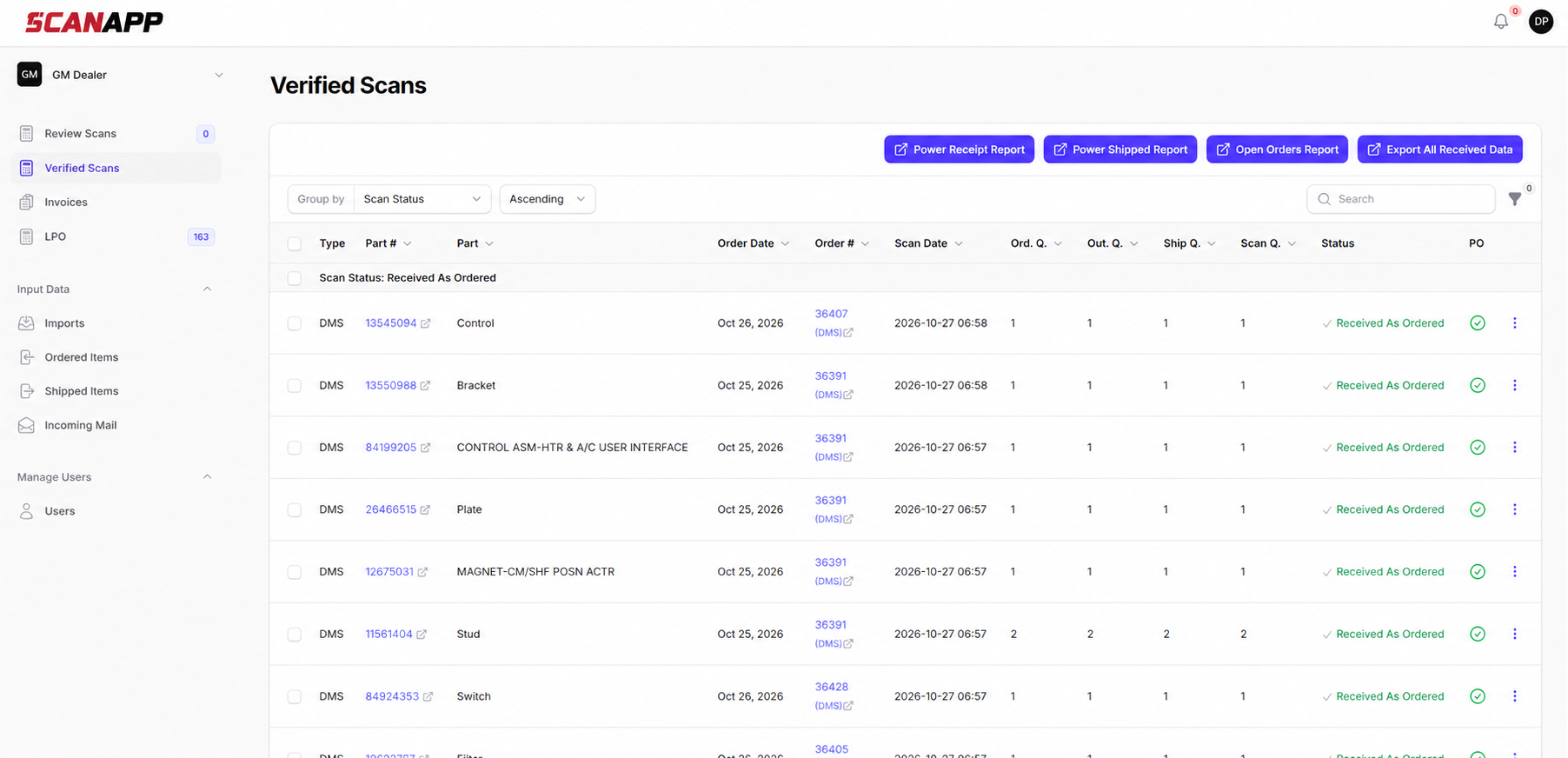
Verified Scans screen for GM Dealer. Enlarge image 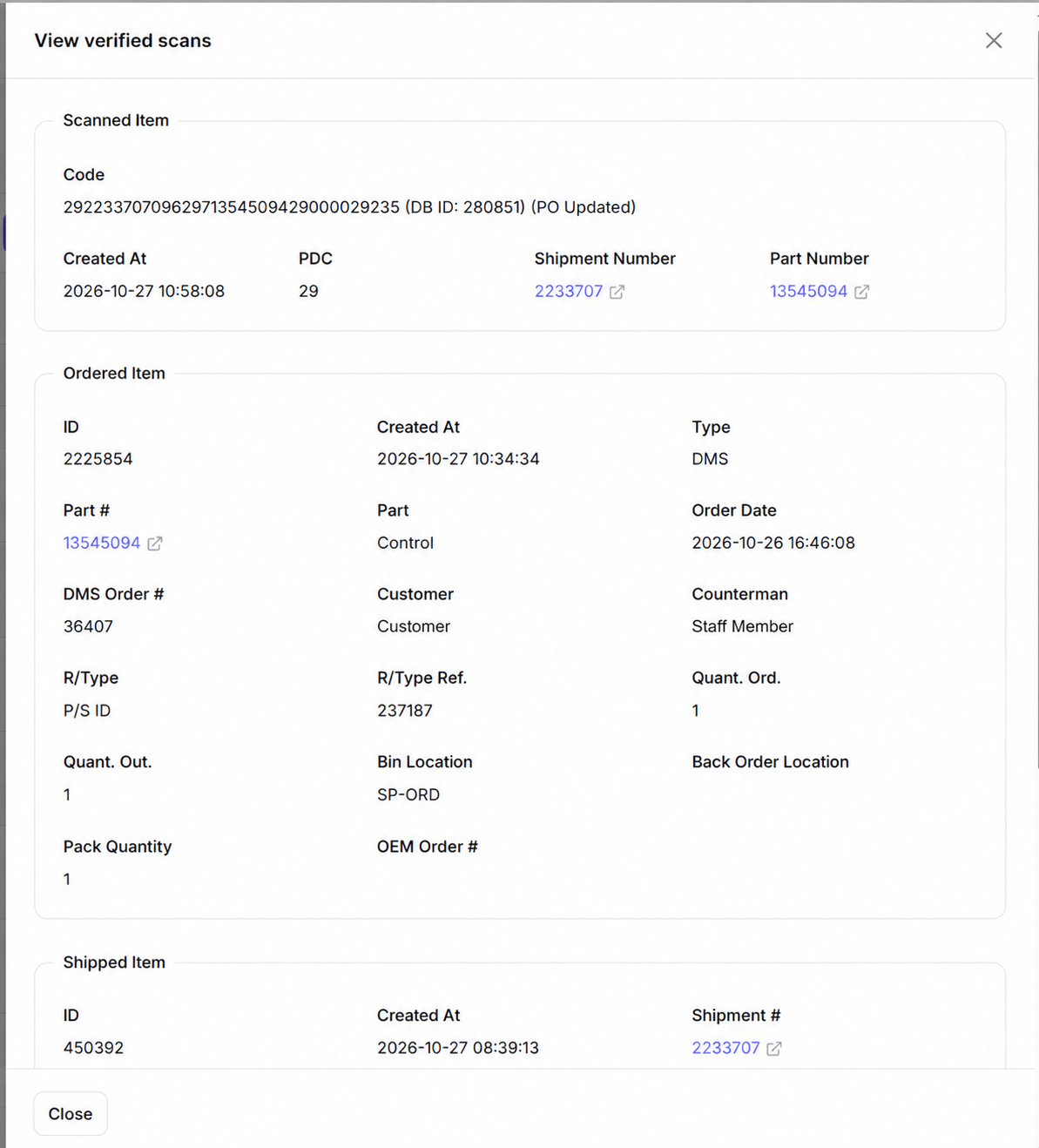
Verified receipt detail. Enlarge image View a verified receipt
Click the three-dot menu at the right of a verified line and select View. The details window shows sections for the Scanned Item, Ordered Item, and Shipped Item. Click Close or the X when finished.
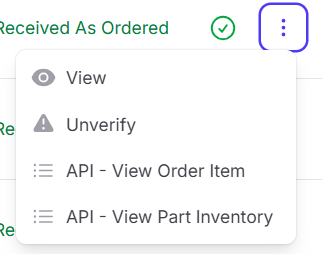
Verified receipt three-dot menu. Enlarge image Reports
Report buttons appear above the records on the Verified Scans screen.
Power Receipt Report

Click Power Receipt Report to export receipt details to Excel for the selected records. The report includes shipment and order references; scanned, DMS, shipped and ordered part numbers; quantity comparisons; Part Issue and Qty Issue; customer and invoice/RO references; Date Scanned; Status; and PO Updated.
Use the report to review differences in part numbers or quantities. Check the date heading in the exported report when reviewing its coverage.
Power Shipped Report
Click Power Shipped Report to export shipping information to Excel. The report includes shipment and order references, part and quantity information, customer and invoice/RO references, Ordered Date, Date Shipped, DSS (Days Since Shipped), and Bin Location.
Review its date heading and shipment dates when checking coverage.
Notes
- If your dealership does not enter LPOs in its DMS parts system, you can still receive LPOs with ScanApp. They will be flagged as Received without Order.
- For superseded parts, a subscript S is displayed beside the part number in ScanApp.